How to Fix a Blurry AI Logo for Print and Get Real Vector Files
You typed a prompt, picked your favorite result, and the logo looks great on screen. Then your printer asks for a vector file, the sign maker says the image is too small, or the embroidery shop sends it back. If that sounds familiar, you are not alone. Most AI logo tools export a flat image, and a flat image is not enough for print.
This guide explains why AI logos break in print, how to check whether yours is ready, and the realistic ways to fix it.
Why AI logos fall apart in print
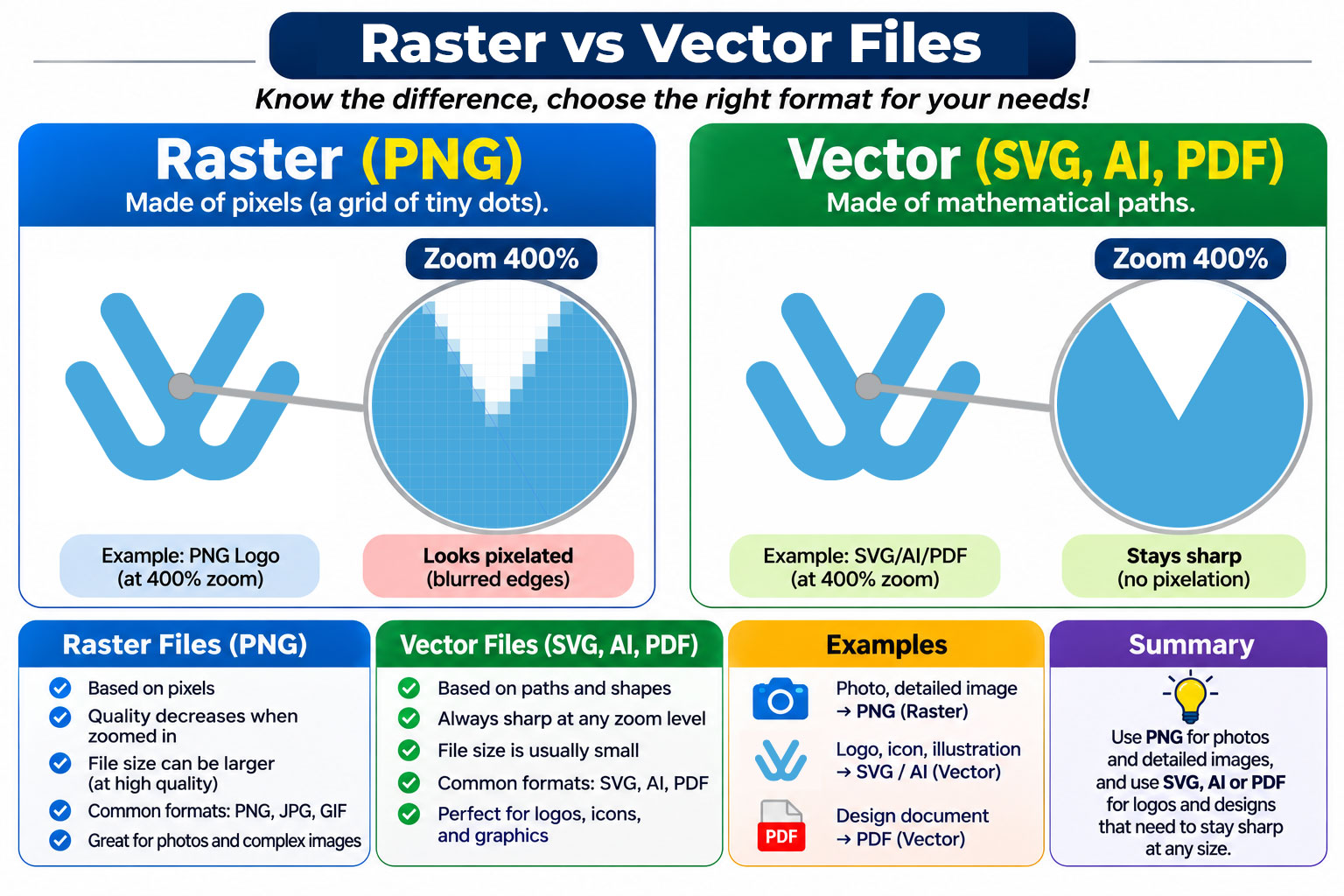
AI tools usually give you a PNG or JPG. These are raster files, made of a fixed grid of pixels. Enlarge them and the pixels stretch, so edges turn soft and blurry. A logo that looks sharp on a phone can look fuzzy on a banner.
Other problems show up often:
- Low resolution. Many AI exports are small. Print usually needs a much larger image than a screen does, and 300 dpi at the final print size is a common target.
- Distorted or misspelled text. AI often produces letters that are uneven, merged, or slightly wrong.
- Messy shapes. Wobbly lines and uneven curves are hard to notice on screen but obvious in print.
- Too many colors. Gradients, soft shadows, and tiny color changes are expensive or impossible in screen printing and embroidery.
- Missing versions. You may have only a full-color logo, with no black, white, or one-color version.
A quick test: is your logo print-ready?
Open your logo and check each item:
- Zoom in to 400%. Do the edges stay sharp, or do they turn blocky and soft?
- Is the file a vector format such as SVG, AI, EPS, or a vector PDF?
- Is all the text spelled correctly and drawn consistently?
- Does it look good in one color, on a white background and on a dark one?
- Do you have a version with a transparent background?
- If it is for print, is there a CMYK version, not only RGB?
If you answered no to any of these, your logo likely needs work before you send it to a printer.
Option 1: Auto-trace it yourself
Design programs can convert an image to vector automatically. Adobe Illustrator has Image Trace, and the free program Inkscape has Trace Bitmap. Several online tools offer the same idea.
This can work for simple, high-contrast logos with a few flat colors. It usually struggles when:
- the image is already small or blurry,
- the logo has gradients, textures, or fine detail,
- the logo contains text, which often becomes lumpy shapes instead of clean letters.
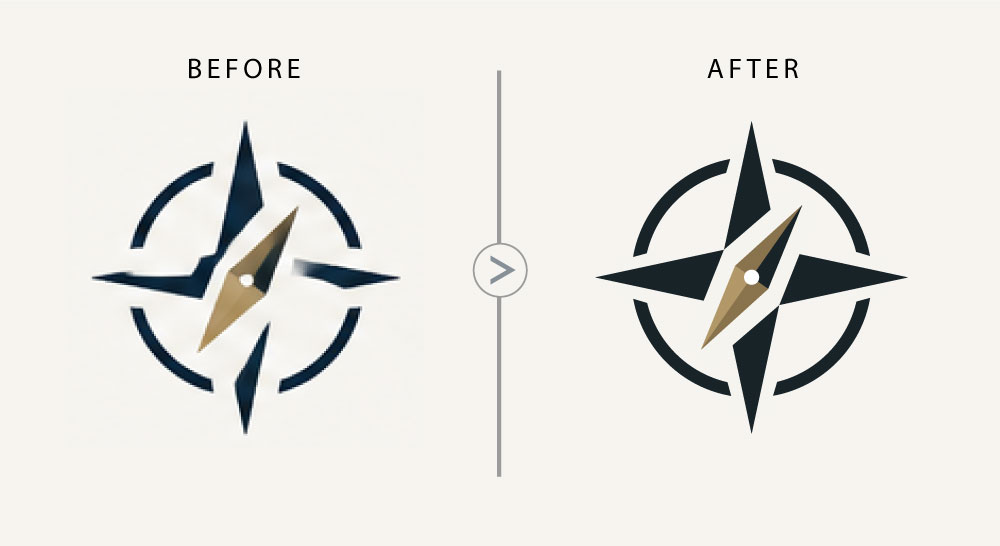
Auto-tracing copies the flaws in your image. A blurry edge becomes a bumpy vector edge. Expect to clean up the result by hand.
Option 2: Have it redrawn by hand
A designer rebuilds the logo from scratch over your image, using clean shapes and smooth curves. Text is replaced with a real font, colors are simplified for print, and the result is checked at several sizes.
This takes more time than auto-tracing, but the output is much more reliable for business cards, signs, shirts, vehicle wraps, and packaging.
If you want this done for you, I offer fixing and vectorizing AI logos with print-ready files. You send the logo, review a preview, and receive the final files after you approve.
Which files should you end up with?
A complete logo set usually includes these files:
| File | What it is for |
|---|---|
| SVG | Websites and apps. It scales without losing quality. |
| AI or EPS | Editable vector files for designers and printers. |
| PDF (vector, CMYK) | Print jobs. Text should be converted to outlines so no fonts go missing. |
| PNG (transparent) | Presentations, documents, and social media. |
| Black, white, and one-color versions | Stamps, engraving, embroidery, and dark backgrounds. |
| Favicon | The small icon shown in browser tabs. |
For embroidery, note that the shop usually needs to convert your artwork into a stitch file. A clean vector with few colors makes that step much easier, but it is not the same as the stitch file itself.
Common mistakes to avoid
- Sending a screenshot to the printer. Screenshots are small and compressed. Use the largest original you have.
- Enlarging a PNG in a program. This makes the image bigger but not sharper.
- Leaving text live in the file. If the printer does not have your font, the text can change. Convert it to outlines for print files.
- Skipping a one-color version. You will need it sooner than you think.
- Ignoring the legal side. Rules on copyright for AI-generated artwork differ by country, and in the US, purely AI-generated material generally cannot be copyrighted. If you plan to trademark your logo, talk to an IP attorney first.
DIY or hire a designer?
Try it yourself if your logo is simple, has two or three flat colors, and you only need it for a website or social media.
Hire a designer if your logo has text that looks off, gradients or fine detail, or you need it for print, signage, embroidery, or packaging. A mistake here costs money, because a bad print run is hard to undo.
Ready to fix your logo?
If your AI logo looks good on screen but not in print, I can redraw it as clean vector files with print-ready formats. Upload your logo and get a fixed price. You see a preview first, and you get a full refund if you are not happy with the result.
FAQ
You can, using an auto-trace tool, but the result is often rough. It works best for simple logos. For logos with text or detail, a hand redraw gives cleaner results.
It depends on the size. A common guideline is 300 dpi at the final print size, which is why vector files are preferred. A vector has no fixed resolution, so it stays sharp at any size.
AI image tools often draw letters as shapes rather than real text. They can misspell words or distort letters. The fix is to rebuild the text with a real font.
This is unsettled and differs by country. Check the terms of the tool you used and consider asking an IP attorney, especially before registering a trademark.